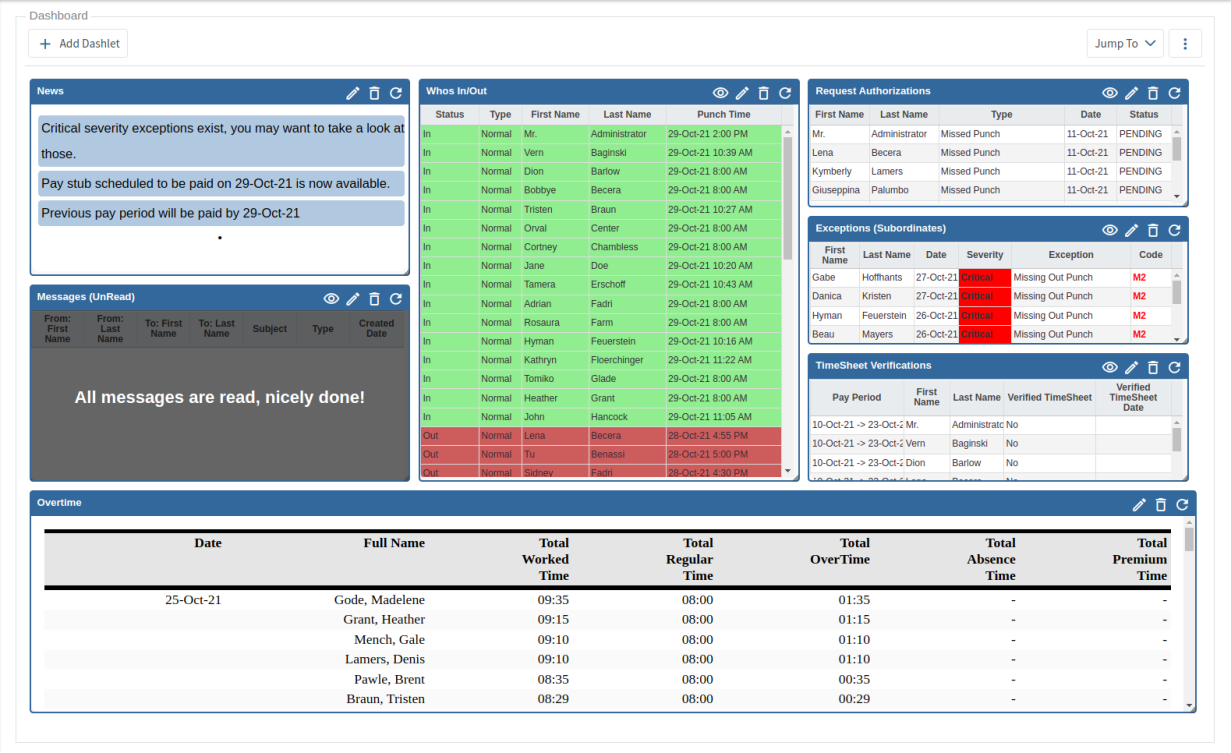
Dashboard
The Dashboard is a customizable at-a-glance view of components or 'Dashlets' that contain important information that an employee refers to frequently. The Dashboard is easily accessible from all other display screens and is generally the first screen you see after you sign in.
To access the Dashboard:
- Select Dashboard from the main menu or click the logo located on the left side of the top header bar.
To Add a Dashlet to the Dashboard using the Dashlet Wizard:
- While on the Dashboard screen, click the Add Dashlet button from the button bar and the Dashlet Wizard opens.
| Dashlet Wizard | |
|---|---|
| Step 1 |
Choose the Type of Dashlet you want to display on your dashboard. For Custom List and Custom Report dashlets, first create a saved report with the desired layout and columns so it will be available to add to your Dashboard. |
| Step 2 |
Choose specific settings for the selected dashlet, such as a new Title, Rows per Page and Enable Auto Refresh to display current information.
For Custom List or Custom report, choose a previously saved report or a report Template as a Dashlet on your Dashboard. |
To further customize your Dashboard the position of the dashlets can be rearranged by using drag and drop or they can be re-sized by dragging the bottom right corner of each dashlet.
Dashlet button icons:

|
|||
| View | Edit | Delete | Refresh |
Example of a Customized Dashboard: